
Setting Up GBDK
GBDK is open source, with release builds available on GitHub. I was using macOS when I wrote this tutorial, so I will start with setting up GBDK on macOS and compiling a Hello World program. The general process is similar on Linux and Windows, although the installation details differ. Feel free to leave a comment if you run into trouble.
Versions used in this tutorial
This tutorial describes my December 2022 setup. The release links and versions below are retained from that setup; use the upstream release pages when choosing a version for a new installation.
Download GBDK
At the time of writing, the stable version was v4.1.1. Download the macOS archive, or find other versions on the releases page.
Directory structure
Extract the archive to get a directory named gbdk. Its contents include:
-
bin/: prebuilt executable tools -
include/: header files -
lib/: libraries -
examples/: example programs -
licenses/: licences -
gbdk_manual.pdf: the GBDK manual -
sdccman.pdf: the SDCC manual -
ChangeLog: release changes -
README: introductory information
Next, move this directory to a suitable location and configure the environment.
Install GBDK and set environment variables
For example, copy the directory to /opt/gbdk:
sudo cp -r gbdk /opt/gbdkThen set the environment variable.
Tips
To make it persistent, add the setting to /etc/profile or your shell's configuration file. Choose the appropriate file; you do not need to update all three.
echo "export GBDKDIR=/opt/gbdk/" | sudo tee -a /etc/profileecho "export GBDKDIR=/opt/gbdk/" | tee -a ~/.bashrcecho "export GBDKDIR=/opt/gbdk/" | tee -a ~/.zshrcInfo
The commands in this tutorial use GBDKDIR. You can also add its bin directory to PATH to invoke the tools without their full paths.
Prepare the GBDK versions of GBTD and GBMB
GBTD (Game Boy Tile Designer) and GBMB (Game Boy Map Builder) are used for tile graphics and tile maps. GBTD draws the tiles; GBMB arranges those tiles into a map.
We will use both tools later. Download the 2.4.5 archive, or choose a version from the releases page.
Extract it to get a GBTD_GBMB_release directory containing GBTD and GBMB. Create a tools directory inside gbdk, then copy the tool directories into it. On macOS or Linux:
sudo mkdir -p "$GBDKDIR/tools"
cd GBTD_GBMB_release
sudo cp -r GBTD "$GBDKDIR/tools/"
sudo cp -r GBMB "$GBDKDIR/tools/"
Configuration file permissions
If the tools cannot save their .ini settings, check the files' ownership and give your account write access to those files. The original setup used a blanket chmod 777; that is unnecessary. A user-owned copy of the tools is another option when a system-wide installation is not needed.
Running the Windows tools
On macOS and Linux, these tools need a compatible Wine installation. Wine runs Windows applications by providing compatible implementations of Windows APIs.
If you do not have Homebrew installed, follow the instructions on the Homebrew website.
My 2022 setup used the Wine-CrossOver packages from gcenx/wine:
brew install --formula gcenx/wine/winetricks
brew install --cask --no-quarantine gcenx/wine/wine-crossover
These are historical package names and commands, rather than instructions tested on current macOS. Consult the upstream project for your current system.
The original tutorial did not include distribution-specific Wine installation instructions. Install Wine for your distribution, then launch the tools as shown below.
Launch GBTD and GBMB with Wine
Once Wine is configured, run:
wine "$GBDKDIR/tools/GBTD/gbtd.exe"
wine "$GBDKDIR/tools/GBMB/gbmb.exe"
For convenience, add aliases to your shell configuration. For example, in ~/.zshrc:
alias gbtd='wine "$GBDKDIR/tools/GBTD/gbtd.exe"'
alias gbmb='wine "$GBDKDIR/tools/GBMB/gbmb.exe"'
Use ~/.bashrc for Bash, or the appropriate configuration file for your shell. Open a new shell after editing it.
Prepare an emulator: SameBoy
I chose SameBoy, an open-source, cross-platform emulator with debugging features that are useful during development.
Choose a build for your platform from the download page. For this tutorial, I used SameBoy v0.15.8 for macOS. Extract the app and drag it into Applications.
Hello, world!
Let's write our first program: display a line of text on the Game Boy screen.
Write the source
Create helloworld.c:
#include <gb/gb.h>
#include <stdio.h>

void main()
{
    printf("HELLO, WORLD!");
}
Compile from the command line
Open a terminal in the directory containing helloworld.c and run:
$GBDKDIR/bin/lcc -Wa-l -Wl-m -Wl-j -o helloworld.gb helloworld.cThis produces helloworld.gb, a ROM file that can be opened in an emulator.
Open the ROM in SameBoy
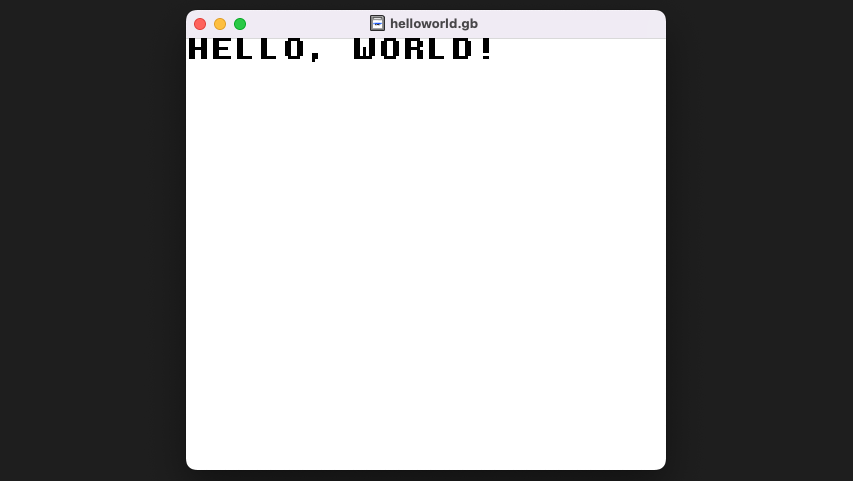
Tips
You can also add an alias for SameBoy to your shell configuration:
alias sameboy=/Applications/SameBoy.app/Contents/MacOS/SameBoyThen open the ROM directly from the terminal:
sameboy helloworld.gbCongratulations — you have built and run your first Game Boy program! 🎉