
Drawing a Simple Sprite with GBDK
The Game Boy has a screen resolution of 160 × 144 pixels. That may seem tiny today, but it was enough to bring many memorable characters to life.
A sprite is a bitmap image used to represent a character or other object in a 2D game. Mario's character graphics are a familiar example.
How can we use GBDK to display a sprite on the Game Boy screen?
We will draw the graphics in a tile editor, export them as a C array, and load that array into the Game Boy's video memory. In this tutorial, we will use GBTD.
Writing your own tool
You can also write an exporter yourself, as long as its C array uses the tile-data format expected by GBDK.
Introducing GBTD
Game Boy backgrounds are commonly built from tile maps, and sprite graphics also use small tiles.
GBTD, the Game Boy Tile Designer, lets us draw tiles and export them as GBDK-compatible C arrays. Here is its interface:
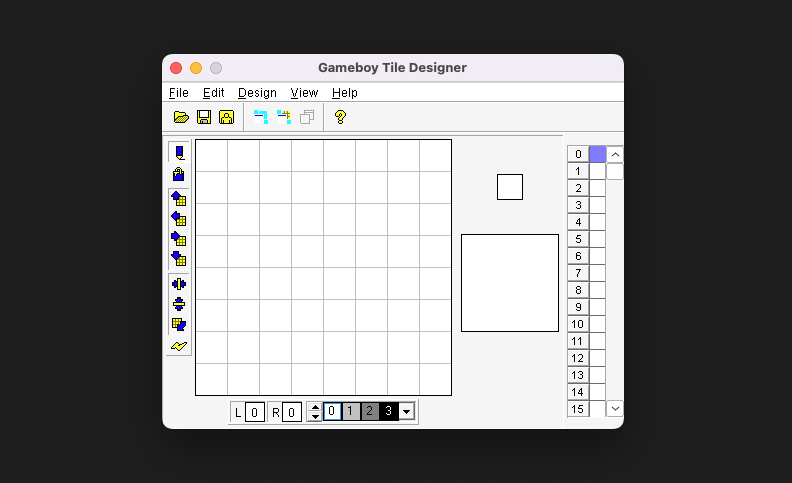
GBTD and GBMB on macOS or Linux
If you have not set up the tools yet, follow the previous tutorial.
With the aliases configured, you can launch them directly:
# Open GBTD
gbtd

# Open GBMB
gbmb
Draw the first sprite
We will draw an 8 × 8 smiley face and place it near the centre of the screen.
Why 8 × 8?
The Game Boy supports two hardware sprite sizes, selected globally:
- 8 × 8 pixels
- 8 × 16 pixels
Each tile is 8 × 8 pixels. A smaller visible shape still occupies a complete tile, with the unused pixels transparent. Larger characters can be assembled from multiple hardware sprites. For this example, one 8 × 8 tile is enough.
At the bottom of GBTD is a colour selector. The L and R indicators show the colour indices assigned to the left and right mouse buttons.
The four swatches on the right represent indices 0 to 3. A palette determines the actual colours; the default palette displays four shades from white to black.

The left toolbar starts with the pencil and fill tools. Below them are four movement tools, followed by vertical flip, horizontal flip, rotation, and automatic updating.

There is no separate eraser
GBTD edits indexed colours rather than RGBA pixels. To replace a pixel, paint it with another colour index. For Game Boy sprites, index 0 is transparent when displayed as a sprite.
Click a swatch with the left mouse button to assign that index to the left drawing button; do the same with the right mouse button for the right drawing button. This lets you draw with two indices without repeatedly changing the selection.
Select the pencil tool, assign the black swatch at index 3 to the left button, and draw a smiley face. You can use your own design as long as it fits inside 8 × 8 pixels.
Then select the fill tool, choose the light-grey swatch at index 1, and fill the face. Mine looks roughly like this:
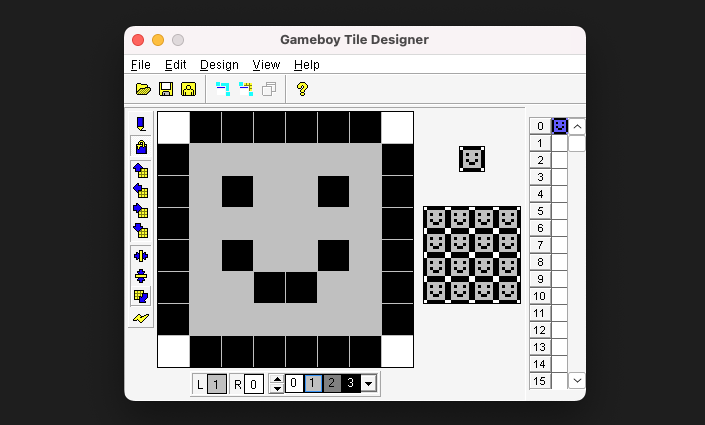
Before exporting, save your work. GBTD stores the editable source in a .gbr file, which you can reopen later.
Export the sprite
Choose Files → ExportTo from the menu and use these settings:
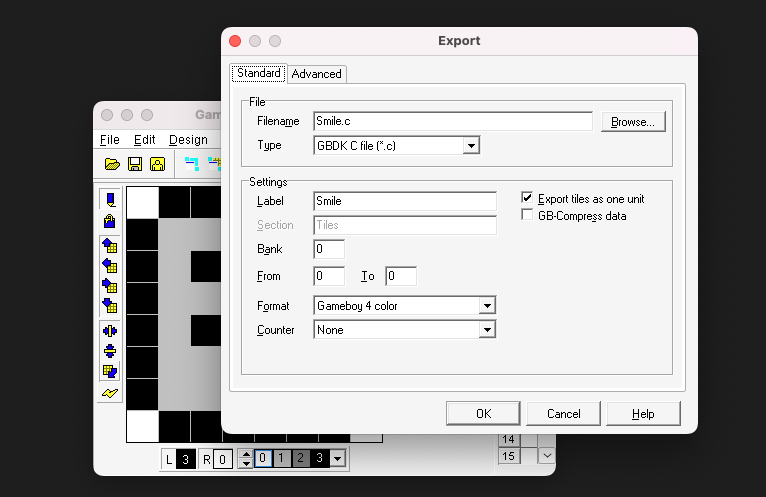
Important settings
- Filename:
Smile.c, the output filename. - Type:
GBDK C file, which exports a compatible C array. - Label:
Smile, the array name we will use in our program. - Format:
Gameboy 4 color.
Click OK. GBTD creates Smile.h and Smile.c alongside the .gbr file. The header contains declarations; the C source contains the actual sprite data. We can now use that array in our program.
Write the program
Set up Visual Studio Code and a Makefile
Info
The Hello World program was a single file, so it did not need much project configuration. From this point on, we will use Visual Studio Code and a Makefile to organise the examples.
Create a gb-dev directory, then a first-sprite directory inside it. Open gb-dev in Visual Studio Code.
To configure header lookup and IntelliSense, create .vscode/c_cpp_properties.json inside gb-dev:
{
    "configurations": [
        {
            "name": "GBDK_VSC",
            "includePath": [
                "${GBDKDIR}/include/**"
            ],
            "defines": [],
            "macFrameworkPath": [],
            "compilerPath": "${GBDKDIR}/bin/lcc",
            "cStandard": "gnu99"
        }
    ],
    "version": 4
}
Copy the exported Smile.h and Smile.c files into first-sprite. Then create the main program, FirstSprite.c, in that directory:
#include <gb/gb.h>
#include <stdio.h>
#include "Smile.h"

void main()
{
    // Copy one tile from Smile to sprite tile slot 0.
    set_sprite_data(0, 1, Smile);

    // Use tile 0 for hardware sprite 0.
    set_sprite_tile(0, 0);

    // Enable the sprite layer through bit 1 of LCDC.
    SHOW_SPRITES;

    // Move hardware sprite 0 near the centre of the screen.
    move_sprite(0, 84, 78);
}
The second argument of set_sprite_data is the number of tiles, so we pass 1 for this one-tile image.
Next, create a Makefile. Make describes how source files are compiled and linked, so we can repeat the build without typing the full compiler command each time:
# Path to the LCC compiler
CC  = $(GBDKDIR)/bin/lcc

# Path to SameBoy
EMU = /Applications/SameBoy.app/Contents/MacOS/SameBoy

# Compile the sources and link FirstSprite.gb
all:
	$(CC) -Wa-l -Wl-m -Wl-j -o FirstSprite.gb Smile.c FirstSprite.c

# Build the ROM, then run it in SameBoy
run: all
	$(EMU) FirstSprite.gb

# Remove intermediate files and generated output
clean:
	rm -f *.o *.lst *.map *.gb *.ihx *.sym *.cdb *.adb *.asm *.noi
The available commands are:
make: runs the first target,all.make all: compiles and links the ROM,FirstSprite.gb.make run: builds the ROM and opens it in SameBoy.make clean: removes intermediate files and generated output.
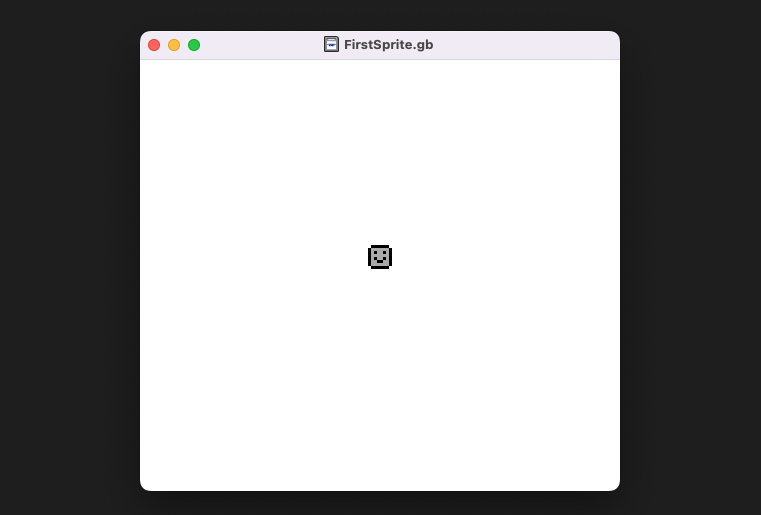
Run make run to build, link, and launch the program. The result should look like this:
Use make clean to return to the source files and Makefile.
Tips
The example sources are in the gb-dev directory.