This post was translated from the original with AI assistance. Read the original
Note
Substats can no longer fetch Bilibili data (the badges show 0). The badges displayed on this page now use Bilibili’s official API, https://api.bilibili.com/x/relation/stat?vmid=<uid> (JSON key $.data.follower); the NetEase Cloud Music badge now uses NetEase’s user API; the other parameters work the same. The code keeps the original URLs.
When using online code hosting services like GitHub, have you often seen little badges like these?


Want badges of your own?
Or maybe you’d like badges that update dynamically? (Doesn’t matter if you don’t have many followers yet, maybe you’ll have more someday ^_^)


This post shows you how to make badges like these and display them on a web page!
Shields.io#
Shield.io provides a badge-making service, with two kinds of badges: static and dynamic. Static badges have fixed text values; neither the badge’s label nor its text ever changes. Dynamic badges are a service where, given a request URL and the corresponding query field that you provide, Shields.io requests that URL for you, gets the JSON data, and shows the data you want displayed in the badge text.
Static Badges#
The general badge format is: https://img.shields.io/badge/{左标签文本}-{右消息文本}-{右消息背景颜色} (left label text, right message text, right message background color).
For the message background color, Shields.io provides some default options made of English words, or you can use a color’s HEX value:


For example, say I want the left label text to be Language, the right message text to be C++, and the right message background color to be blue:
https://img.shields.io/badge/Language-C++-blue
Chinese works too, and it looks super professional (totally):
https://img.shields.io/badge/语言-C加加-blue

Dynamic Badges#
Here’s how dynamic badges work: first you need an API service. You fill in the relevant parameters, request the service, and it returns JSON data containing the dynamic data you need. Honestly, I could reinvent the wheel and write my own API service, since this wheel is really easy to build. But since it’s so easy, and someone has already built one, I can leave the wheel for later, hahaha, and just use someone else’s for now. (To be honest, Substats is a bit slow, so I really do plan to build my own.)
Substats#
Substats is exactly that kind of service. It mainly makes requests to various social platforms and returns follower or subscriber counts. The principle isn’t hard either: request the social platform’s profile page URL, grab the value of the corresponding HTML tag, and wrap it in JSON when returning it. If you’re interested, you can refer to my earlier post Building an API Service on a Server with Python and give it a try yourself.
So how do you use Substats? Here’s an example:
https://api.spencerwoo.com/substats/?source=bilibili&queryKey=33320940
Set source to the name of the corresponding social site; for the supported name values, see the Substats API.
queryKey is a value that uniquely identifies the account, like an id; here it’s the uid in the bilibili profile page URL.
https://space.bilibili.com/33320940
Here, queryKey is 33320930.
First, visit it directly and look at the returned JSON:
{"status":200,"data":{"totalSubs":467,"subsInEachSource":{"bilibili":467},"failedSources":{}}}status is the status code designed by Substats; 200 means the request succeeded.
data is the JSON object designed by Substats, and what we need is the value of the totalSubs key. Here it’s 467.
Now, using the fixed API service URL and the key in the fixed JSON object whose value we want, we can tell Shields.io to do the job for us.
Shields’ Dynamic Badge API#
The format is:
https://img.shields.io/badge/dynamic/json?url=<API请求网址>&label=<左标签文本>&query=<JSON的键>&color=<右消息背景颜色>&prefix=<前缀>&suffix=<后缀>
(API request URL, left label text, JSON key, right message background color, prefix, suffix)
You generally won’t need the prefix and suffix.
Again, let’s use displaying my bilibili follower count as the example:
https://img.shields.io/badge/dynamic/json?url=https%3A%2F%2Fapi.spencerwoo.com%2Fsubstats%2F%3Fsource%3Dbilibili%26queryKey%3D33320940&label=bilibili%20fans&query=%24.data.totalSubs&color=282c34

The URL above has been escaped. In reality, API请求网址 (API request URL) is https://api.spencerwoo.com/substats/?source=bilibili&queryKey=33320940, 左标签文本 (left label text) is bilibili fans, JSON的键 (JSON key) is $.data.totalSubs, and 右消息背景颜色 (right message background color) is 282c34. The prefix and suffix are simply ignored, so we don’t add &prefix=<..>&suffix=<..>.
You can also go to Shields.io, fill in the corresponding fields, and click Make Badge:
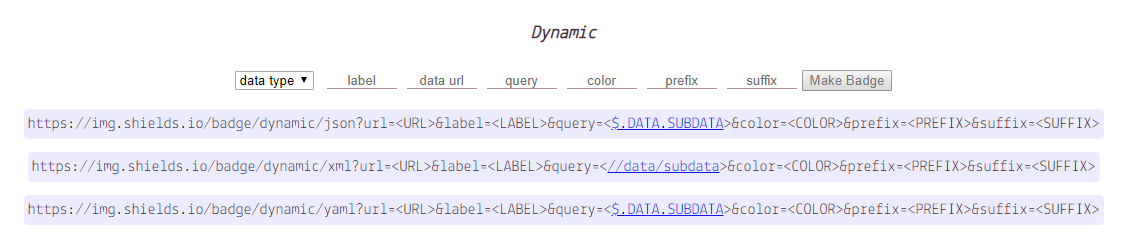
That covers static and dynamic badges. You may have noticed: wait, the earlier examples also had a pink label and the little bilibili TV logo! That’s right, next up is the “beautification” stuff everyone really cares about.
Beautification#
Showing an Icon#
You can add &logo=bilibili to the URL above; the result looks like this:

For icons, search by name on simpleicons. If the icon is there, you can use its name directly.
For example, I could change it to &logo=baidu
and the result becomes:

If simpleicons doesn’t have the icon you want, you can use a custom icon
A custom icon needs to be passed in as base64. For example, simpleicons doesn’t have a NetEase Cloud Music icon, so I had to find a NetEase Cloud Music SVG icon myself and convert it to base64. You can do the conversion on this site: https://www.css-js.com/tools/base64.html
You can find icons on easyicon.net (the site has since shut down)
There are plenty of other SVG icon search sites worth checking out too.
Here I searched easyicon for NetEase Cloud Music (the site has shut down; the original link is dead)
Drag the SVG file of the NetEase Cloud Music logo onto the conversion site mentioned above, uncheck “使用在 css 中” (use in CSS), and click “Copy code” to get the base64 code on your clipboard:
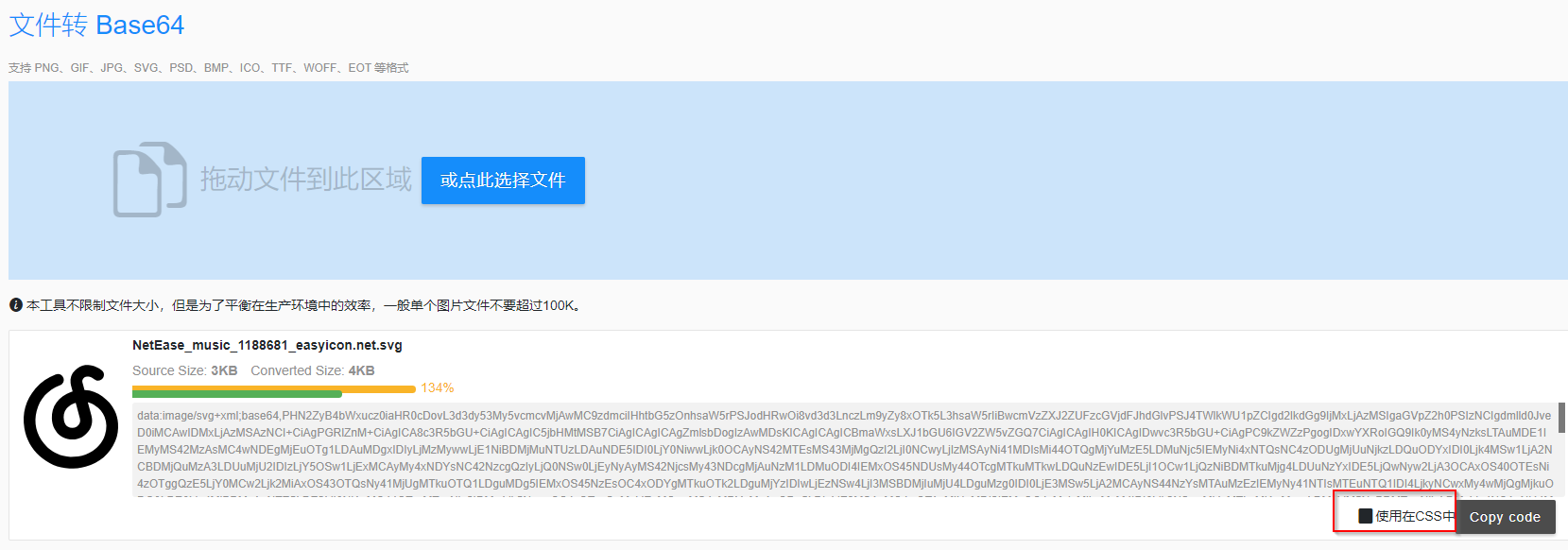
data:image/svg+xml;base64,PHN2ZyB4bWxucz0iaHR0cDovL3d3dy53My5vcmcvMjAwMC9zdmciIHhtbG5zOnhsaW5rPSJodHRwOi8vd3d3LnczLm9yZy8xOTk5L3hsaW5rIiBwcmVzZXJ2ZUFzcGVjdFJhdGlvPSJ4TWlkWU1pZCIgd2lkdGg9IjMxLjAzMSIgaGVpZ2h0PSIzNCIgdmlld0JveD0iMCAwIDMxLjAzMSAzNCI+CiAgPGRlZnM+CiAgICA8c3R5bGU+CiAgICAgIC5jbHMtMSB7CiAgICAgICAgZmlsbDogIzAwMDsKICAgICAgICBmaWxsLXJ1bGU6IGV2ZW5vZGQ7CiAgICAgIH0KICAgIDwvc3R5bGU+CiAgPC9kZWZzPgogIDxwYXRoIGQ9Ik0yMS4yNzksLTAuMDE1IEMyMS42MzAsMC4wNDEgMjEuOTg1LDAuMDgxIDIyLjMzMywwLjE1NiBDMjMuNTUzLDAuNDE5IDI0LjY0NiwwLjk0OCAyNS42MTEsMS43MjMgQzI2LjI0NCwyLjIzMSAyNi41MDIsMi44OTQgMjYuMzE5LDMuNjc5IEMyNi4xNTQsNC4zODUgMjUuNjkzLDQuODYxIDI0Ljk4MSw1LjA2NCBDMjQuMzA3LDUuMjU2IDIzLjY5OSw1LjExMCAyMy4xNDYsNC42NzcgQzIyLjQ0NSw0LjEyNyAyMS42NjcsMy43NDcgMjAuNzM1LDMuODI4IEMxOS45NDUsMy44OTcgMTkuMTkwLDQuNzEwIDE5LjI1OCw1LjQzNiBDMTkuMjg4LDUuNzYxIDE5LjQwNyw2LjA3OCAxOS40OTEsNi4zOTggQzE5LjY0MCw2Ljk2MiAxOS43OTQsNy41MjUgMTkuOTQ1LDguMDg5IEMxOS45NzEsOC4xODYgMTkuOTk2LDguMjYzIDIwLjEzNSw4LjI3MSBDMjIuMjU4LDguMzg0IDI0LjE3MSw5LjA2MCAyNS44NzYsMTAuMzEzIEMyNy41NTIsMTEuNTQ1IDI4LjkyNCwxMy4wMjQgMjkuODQ0LDE0Ljg4MiBDMzAuNTE5LDE2LjI0NiAzMC44OTcsMTcuNjg2IDMwLjk5NywxOS4xOTcgQzMxLjEzMCwyMS4yMDYgMzAuODg5LDIzLjE3MSAzMC4wOTAsMjUuMDI2IEMyOC4yMzIsMjkuMzM4IDI0Ljk2NSwzMi4xMTkgMjAuMzcxLDMzLjM5NyBDMTguNjIzLDMzLjg4NCAxNi44MzIsMzQuMDc0IDE1LjAxOSwzMy45NzMgQzExLjI1MCwzMy43NjMgNy45ODUsMzIuMzcwIDUuMjM1LDI5Ljg1MSBDMi41MjEsMjcuMzY3IDAuODI5LDI0LjMxMiAwLjI0MSwyMC43MjYgQy0wLjU2MCwxNS44NDggMC42NjgsMTEuNDc1IDMuOTE3LDcuNjgyIEM1LjcwMSw1LjU5OCA3LjkyOCw0LjA5NyAxMC41MjUsMy4xMjggQzExLjQyMCwyLjc5MyAxMi4zOTksMy4xMDUgMTIuODkwLDMuODY5IEMxMy4zOTIsNC42NTAgMTMuMjc0LDUuNjU1IDEyLjU3OSw2LjI3NiBDMTIuMzgzLDYuNDUyIDEyLjEzNSw2LjU5MSAxMS44ODcsNi42OTAgQzcuOTI4LDguMjcxIDUuMzEzLDExLjA1NiA0LjI3NCwxNS4xMTggQzMuMjY2LDE5LjA1OCA0LjE1NywyMi42NjUgNi43MzAsMjUuODQzIEM4LjM0MywyNy44MzUgMTAuNDI3LDI5LjE3MyAxMi45NDksMjkuODMwIEMxNC41NzksMzAuMjU1IDE2LjIyNiwzMC4yODIgMTcuODg2LDMwLjAzMSBDMTkuNTk5LDI5Ljc3MiAyMS4xOTksMjkuMjIxIDIyLjYzNCwyOC4yNjAgQzI0LjYwOCwyNi45MzcgMjYuMDE1LDI1LjE3NCAyNi43MTgsMjIuOTMwIEMyNy4zMjUsMjAuOTkzIDI3LjM0NiwxOS4wMzcgMjYuNTk2LDE3LjExNSBDMjUuOTkyLDE1LjU2OCAyNC45MjQsMTQuMzc4IDIzLjU4NSwxMy4zOTYgQzIyLjg3MCwxMi44NzEgMjIuMTAyLDEyLjQ2MiAyMS4yMjYsMTIuMjYxIEMyMS4xODYsMTIuMjUyIDIxLjE0NSwxMi4yNDcgMjEuMDczLDEyLjIzNiBDMjEuMTkzLDEyLjY4NCAyMS4zMDQsMTMuMTEwIDIxLjQxOSwxMy41MzUgQzIxLjY5NywxNC41NTkgMjEuOTgxLDE1LjU4MiAyMi4yNTQsMTYuNjA4IEMyMi44NDcsMTguODM4IDIyLjI3MywyMC43OTEgMjAuNzA0LDIyLjQ1NSBDMTkuMjUyLDIzLjk5NSAxNy40MDQsMjQuNjY1IDE1LjI4NSwyNC40NjQgQzEyLjkyNSwyNC4yNDAgMTEuMjQwLDIyLjk4NyAxMC4xNDEsMjAuOTU4IEM5LjU2NSwxOS44OTYgOS4zMTcsMTguNzUxIDkuMjcxLDE3LjU1MyBDOS4xOTgsMTUuNjQ1IDkuNjUzLDEzLjg4NCAxMC43NzAsMTIuMzA5IEMxMS45NzAsMTAuNjE4IDEzLjYzMSw5LjUzMyAxNS41OTUsOC44NTkgQzE1Ljc0OSw4LjgwNiAxNS45MDYsOC43NTggMTYuMDg3LDguNjk5IEMxNS45ODEsOC4zMDYgMTUuODcxLDcuOTIzIDE1Ljc3Niw3LjUzNyBDMTUuNjQ1LDcuMDA1IDE1LjQ3Nyw2LjQ3NiAxNS40MTEsNS45MzYgQzE1LjIxNyw0LjMzOCAxNS43MTgsMi45NDkgMTYuODQ2LDEuNzg1IEMxNy43NzAsMC44MzMgMTguODkwLDAuMjI5IDIwLjIzMiwwLjA0OCBDMjAuMzgwLDAuMDI4IDIwLjUyNywwLjAwNiAyMC42NzUsLTAuMDE1IEMyMC44NzYsLTAuMDE1IDIxLjA3NywtMC4wMTUgMjEuMjc5LC0wLjAxNSBaTTE3LjA4OCwxMi4zODcgQzE1LjkyNSwxMi43NDkgMTQuOTIxLDEzLjMwMSAxNC4xNjgsMTQuMjE5IEMxMy4xNjEsMTUuNDQ5IDEyLjk2MCwxNi44NjIgMTMuMjgxLDE4LjM2MyBDMTMuNDQ4LDE5LjE0MyAxMy44MzgsMTkuODEwIDE0LjUyMiwyMC4yNzYgQzE1LjM3NywyMC44NTggMTYuNTQyLDIwLjgzMyAxNy40MzYsMjAuMjI4IEMxOC4zNTAsMTkuNjA4IDE4Ljc1NywxOC42MDkgMTguNDkwLDE3LjU4NSBDMTguMTk4LDE2LjQ2MyAxNy44ODcsMTUuMzQ1IDE3LjU4NCwxNC4yMjUgQzE3LjQyMSwxMy42MjMgMTcuMjU4LDEzLjAxOSAxNy4wODgsMTIuMzg3IFoiIGNsYXNzPSJjbHMtMSIvPgo8L3N2Zz4KThen you can pass in
&logo=data:image/svg+xml;base64,PHN2ZyB4bWxucz0iaHR0cDovL3d3dy53My5vcmcvMjAwMC9zdmciIHhtbG5zOnhsaW5rPSJodHRwOi8vd3d3LnczLm9yZy8xOTk5L3hsaW5rIiBwcmVzZXJ2ZUFzcGVjdFJhdGlvPSJ4TWlkWU1pZCIgd2lkdGg9IjMxLjAzMSIgaGVpZ2h0PSIzNCIgdmlld0JveD0iMCAwIDMxLjAzMSAzNCI+CiAgPGRlZnM+CiAgICA8c3R5bGU+CiAgICAgIC5jbHMtMSB7CiAgICAgICAgZmlsbDogIzAwMDsKICAgICAgICBmaWxsLXJ1bGU6IGV2ZW5vZGQ7CiAgICAgIH0KICAgIDwvc3R5bGU+CiAgPC9kZWZzPgogIDxwYXRoIGQ9Ik0yMS4yNzksLTAuMDE1IEMyMS42MzAsMC4wNDEgMjEuOTg1LDAuMDgxIDIyLjMzMywwLjE1NiBDMjMuNTUzLDAuNDE5IDI0LjY0NiwwLjk0OCAyNS42MTEsMS43MjMgQzI2LjI0NCwyLjIzMSAyNi41MDIsMi44OTQgMjYuMzE5LDMuNjc5IEMyNi4xNTQsNC4zODUgMjUuNjkzLDQuODYxIDI0Ljk4MSw1LjA2NCBDMjQuMzA3LDUuMjU2IDIzLjY5OSw1LjExMCAyMy4xNDYsNC42NzcgQzIyLjQ0NSw0LjEyNyAyMS42NjcsMy43NDcgMjAuNzM1LDMuODI4IEMxOS45NDUsMy44OTcgMTkuMTkwLDQuNzEwIDE5LjI1OCw1LjQzNiBDMTkuMjg4LDUuNzYxIDE5LjQwNyw2LjA3OCAxOS40OTEsNi4zOTggQzE5LjY0MCw2Ljk2MiAxOS43OTQsNy41MjUgMTkuOTQ1LDguMDg5IEMxOS45NzEsOC4xODYgMTkuOTk2LDguMjYzIDIwLjEzNSw4LjI3MSBDMjIuMjU4LDguMzg0IDI0LjE3MSw5LjA2MCAyNS44NzYsMTAuMzEzIEMyNy41NTIsMTEuNTQ1IDI4LjkyNCwxMy4wMjQgMjkuODQ0LDE0Ljg4MiBDMzAuNTE5LDE2LjI0NiAzMC44OTcsMTcuNjg2IDMwLjk5NywxOS4xOTcgQzMxLjEzMCwyMS4yMDYgMzAuODg5LDIzLjE3MSAzMC4wOTAsMjUuMDI2IEMyOC4yMzIsMjkuMzM4IDI0Ljk2NSwzMi4xMTkgMjAuMzcxLDMzLjM5NyBDMTguNjIzLDMzLjg4NCAxNi44MzIsMzQuMDc0IDE1LjAxOSwzMy45NzMgQzExLjI1MCwzMy43NjMgNy45ODUsMzIuMzcwIDUuMjM1LDI5Ljg1MSBDMi41MjEsMjcuMzY3IDAuODI5LDI0LjMxMiAwLjI0MSwyMC43MjYgQy0wLjU2MCwxNS44NDggMC42NjgsMTEuNDc1IDMuOTE3LDcuNjgyIEM1LjcwMSw1LjU5OCA3LjkyOCw0LjA5NyAxMC41MjUsMy4xMjggQzExLjQyMCwyLjc5MyAxMi4zOTksMy4xMDUgMTIuODkwLDMuODY5IEMxMy4zOTIsNC42NTAgMTMuMjc0LDUuNjU1IDEyLjU3OSw2LjI3NiBDMTIuMzgzLDYuNDUyIDEyLjEzNSw2LjU5MSAxMS44ODcsNi42OTAgQzcuOTI4LDguMjcxIDUuMzEzLDExLjA1NiA0LjI3NCwxNS4xMTggQzMuMjY2LDE5LjA1OCA0LjE1NywyMi42NjUgNi43MzAsMjUuODQzIEM4LjM0MywyNy44MzUgMTAuNDI3LDI5LjE3MyAxMi45NDksMjkuODMwIEMxNC41NzksMzAuMjU1IDE2LjIyNiwzMC4yODIgMTcuODg2LDMwLjAzMSBDMTkuNTk5LDI5Ljc3MiAyMS4xOTksMjkuMjIxIDIyLjYzNCwyOC4yNjAgQzI0LjYwOCwyNi45MzcgMjYuMDE1LDI1LjE3NCAyNi43MTgsMjIuOTMwIEMyNy4zMjUsMjAuOTkzIDI3LjM0NiwxOS4wMzcgMjYuNTk2LDE3LjExNSBDMjUuOTkyLDE1LjU2OCAyNC45MjQsMTQuMzc4IDIzLjU4NSwxMy4zOTYgQzIyLjg3MCwxMi44NzEgMjIuMTAyLDEyLjQ2MiAyMS4yMjYsMTIuMjYxIEMyMS4xODYsMTIuMjUyIDIxLjE0NSwxMi4yNDcgMjEuMDczLDEyLjIzNiBDMjEuMTkzLDEyLjY4NCAyMS4zMDQsMTMuMTEwIDIxLjQxOSwxMy41MzUgQzIxLjY5NywxNC41NTkgMjEuOTgxLDE1LjU4MiAyMi4yNTQsMTYuNjA4IEMyMi44NDcsMTguODM4IDIyLjI3MywyMC43OTEgMjAuNzA0LDIyLjQ1NSBDMTkuMjUyLDIzLjk5NSAxNy40MDQsMjQuNjY1IDE1LjI4NSwyNC40NjQgQzEyLjkyNSwyNC4yNDAgMTEuMjQwLDIyLjk4NyAxMC4xNDEsMjAuOTU4IEM5LjU2NSwxOS44OTYgOS4zMTcsMTguNzUxIDkuMjcxLDE3LjU1MyBDOS4xOTgsMTUuNjQ1IDkuNjUzLDEzLjg4NCAxMC43NzAsMTIuMzA5IEMxMS45NzAsMTAuNjE4IDEzLjYzMSw5LjUzMyAxNS41OTUsOC44NTkgQzE1Ljc0OSw4LjgwNiAxNS45MDYsOC43NTggMTYuMDg3LDguNjk5IEMxNS45ODEsOC4zMDYgMTUuODcxLDcuOTIzIDE1Ljc3Niw3LjUzNyBDMTUuNjQ1LDcuMDA1IDE1LjQ3Nyw2LjQ3NiAxNS40MTEsNS45MzYgQzE1LjIxNyw0LjMzOCAxNS43MTgsMi45NDkgMTYuODQ2LDEuNzg1IEMxNy43NzAsMC44MzMgMTguODkwLDAuMjI5IDIwLjIzMiwwLjA0OCBDMjAuMzgwLDAuMDI4IDIwLjUyNywwLjAwNiAyMC42NzUsLTAuMDE1IEMyMC44NzYsLTAuMDE1IDIxLjA3NywtMC4wMTUgMjEuMjc5LC0wLjAxNSBaTTE3LjA4OCwxMi4zODcgQzE1LjkyNSwxMi43NDkgMTQuOTIxLDEzLjMwMSAxNC4xNjgsMTQuMjE5IEMxMy4xNjEsMTUuNDQ5IDEyLjk2MCwxNi44NjIgMTMuMjgxLDE4LjM2MyBDMTMuNDQ4LDE5LjE0MyAxMy44MzgsMTkuODEwIDE0LjUyMiwyMC4yNzYgQzE1LjM3NywyMC44NTggMTYuNTQyLDIwLjgzMyAxNy40MzYsMjAuMjI4IEMxOC4zNTAsMTkuNjA4IDE4Ljc1NywxOC42MDkgMTguNDkwLDE3LjU4NSBDMTguMTk4LDE2LjQ2MyAxNy44ODcsMTUuMzQ1IDE3LjU4NCwxNC4yMjUgQzE3LjQyMSwxMy42MjMgMTcuMjU4LDEzLjAxOSAxNy4wODgsMTIuMzg3IFoiIGNsYXNzPSJjbHMtMSIvPgo8L3N2Zz4KResult:

As you can see, the NetEase Cloud Music logo shows up successfully.
Label Color#
You can add another parameter, &labelColor={颜色值} (color value)
For example, in the earlier bilibili example, I want the label to be pink, FE7398
So I add the parameter &labelColor=FE7398
The result:

Of course, as before, the existing English color options are supported. Putting in pink probably won’t look too different.
But now the icon is blue, which doesn’t quite go with the white text, and it doesn’t contrast well with the pink either. I think white would be better, so what do we do?
Icon Color#
Just add the parameter &logoColor={颜色值} (color value).
Here I’ll add &logoColor=white and see how it looks:

Look, that looks great!
Badge Style#
Badges come in 5 styles. Here’s the example from the official site:
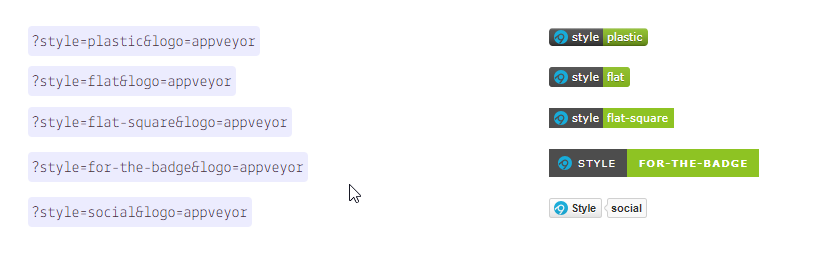
The 5 styles are plastic, flat, flat-square, for-the-badge and social
Let’s add &style=for-the-badge to the earlier URL and see how it looks:

WOW! Not bad, huh
At this point, the badge URL is
https://img.shields.io/badge/dynamic/json?url=https%3A%2F%2Fapi.spencerwoo.com%2Fsubstats%2F%3Fsource%3Dbilibili%26queryKey%3D33320940&label=bilibili%20fans&query=$.data.totalSubs&color=282c34&logo=bilibili&labelColor=FE7398&logoColor=white&style=for-the-badgeFinally, just display the badge with an <img> tag or markdown’s ![]() syntax and you’re done!
For example
<img src="https://img.shields.io/badge/dynamic/json?url=https%3A%2F%2Fapi.spencerwoo.com%2Fsubstats%2F%3Fsource%3Dbilibili%26queryKey%3D33320940&label=bilibili%20fans&query=$.data.totalSubs&color=282c34&logo=bilibili&labelColor=FE7398&logoColor=white&style=for-the-badge">or
More Parameters#
For more parameters, see the Shields.io website, which provides examples.
Summary#
After all that fiddling, I’ve finally gone through how to use Shields.io and Substats.
Badges look great. Have you learned how to make them? If you can, try writing your own API service (after all, Substats is only so-so in terms of speed).
Comments