This post was translated from the original with AI assistance. Read the original
Originally published on my old cnblogs blog: GameShell怎么玩 (written 2020-03-31).
How do you play with a GameShell? Let me show you!
What Is GameShell#
GameShell is an open-source handheld console made by clockwork. When you get it, you have to assemble it yourself, insert an SD card, and power it on.
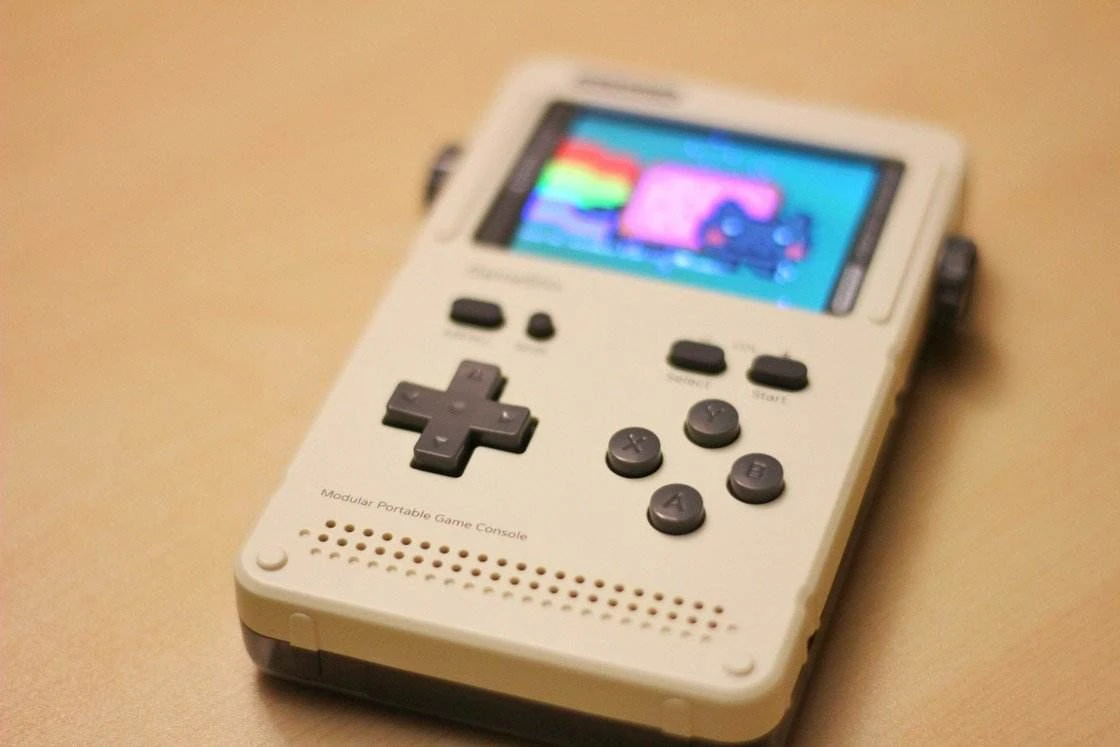
Its core board is called clockworkpi, which looks a lot like a Raspberry Pi and runs Arm Linux (Debian). The button module uses an Arduino controller, and the screen is a 320 * 240 LCD. It supports Bluetooth and WiFi, and exposes the Arduino output pins as well as the core board’s GPIO. All of GameShell’s software and hardware is public and transparent: the operating system, the 3D-printing files for the case, the circuits, the schematics — you can find all of it on GitHub. Truly, fully open source.
You can use it to emulate games from lots of platforms, and it also natively supports PICO-8, TIC-80, Love2D, and HTML5 games running through nw.js.
It’s fair to say that gamers, indie game developers, makers and GEEKs alike will find it hard to put down.
What to Do Once It’s On#
From here on, I’ll share my experience playing with GameShell and some tips.
System Settings#
Set the System Language to Chinese#
I know some people will say they don’t understand English and want to switch the system language to Chinese. So here’s how to change it.
On the far left there’s Settings, i.e. 设置.
In Settings->Language, just pick 简体中文 (Simplified Chinese). I’ve flashed deot’s image here; I’ll talk about flashing the system later.
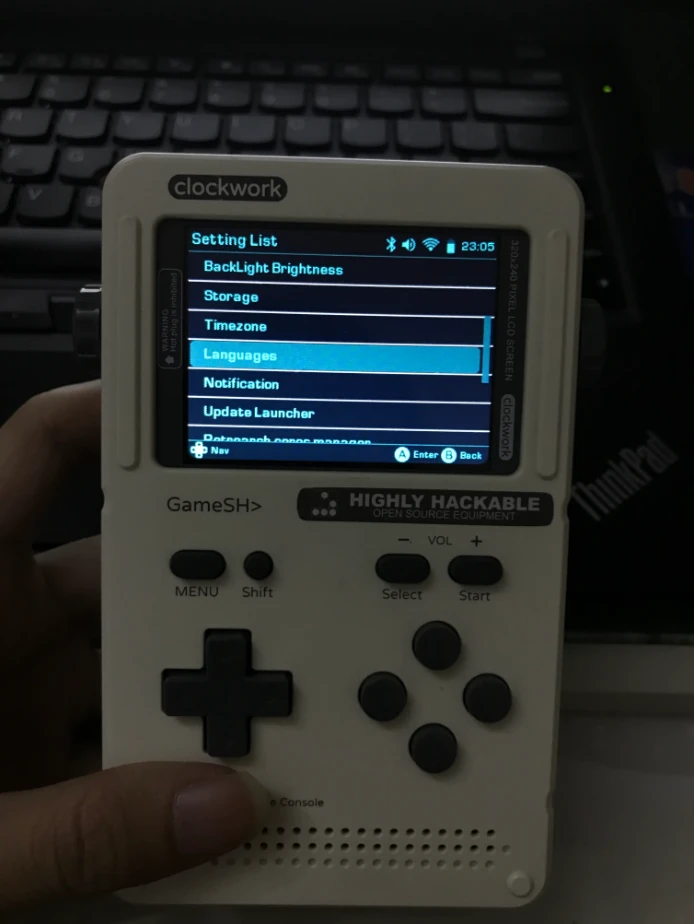
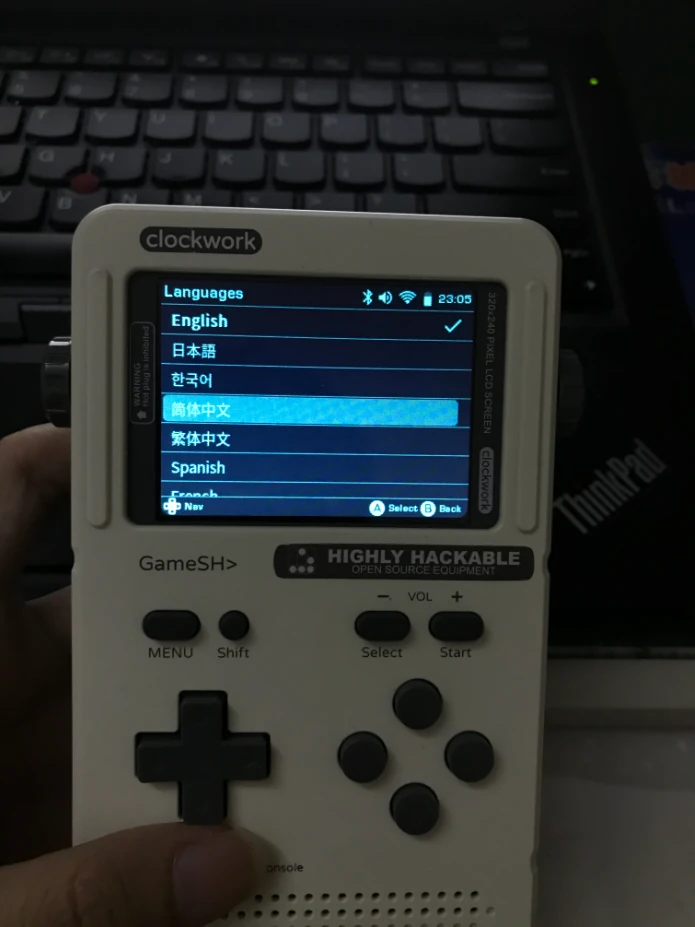
First, the biggest gotcha: if you want to leave the GameShell charging, you must switch to 服务器模式 (server mode) by choosing 服务器 (Server) in 设置->电源选项 (Settings -> Power Options). Otherwise it’ll shut down while charging (this really happened to me)! Another way is to plug it in and then power it off — the screen stays dark, but it’s actually charging!
Adjusting the Time Zone#
After changing the language, you notice the time is off, so you’ll want to set the system time to China time.
GameShell supports time zone settings. In 设置->时区 (Settings -> Time Zone), choose Asia, then Shanghai, i.e. Shanghai time. When looking for Shanghai, you can use the left/right buttons to quickly page up and down.
Adjusting the Volume#
You can go into 设置->音量 (Settings -> Volume) and press left/right to adjust the volume. GameShell also provides the shortcuts Shift + Select and Shift + Start — as you can see, these are the - and + on the case, for volume down and volume up respectively.
Adjusting the Brightness#
In 设置->背光亮度 (Settings -> Backlight Brightness), press left/right to adjust the GameShell’s screen brightness.
Connecting to WiFi and Bluetooth, Turning Airplane Mode On and Off#
Without the internet, it’s just not the same! You’ve got to get online!
So in 设置->Wi-Fi (Settings -> Wi-Fi), you can pick the WiFi network you want and enter the password to connect.
For Bluetooth, go to 设置->蓝牙 (Settings -> Bluetooth) to search for devices and pair them.
Airplane mode is mostly useful when you want to save battery while gaming; you can turn it on and off in 设置->飞行模式 (Settings -> Airplane Mode). With airplane mode on, neither WiFi nor Bluetooth is available.
Changing the Controller Layout#
While using it, you may find the A and B the system tells you to press are swapped compared to what’s in your hands.
Don’t worry — when people assemble it, some end up with an Xbox-style layout and some with an SNES-style layout.
In 设置->按钮布局 (Settings -> Button Layout) you can switch to whichever button style you want, and you can also update the config in RetroArch at the same time. RetroArch is the all-in-one emulator; more on that in a moment.
All of the operations above are safe. Be careful with anything else, or you may end up unable to boot, or booting without getting into the desktop environment, etc…
Games#
I know you want to play games right away. OK, let me tell you how.
After booting, you’ll find GameShell comes with some games. Retro Games contains emulators — there are no ROMs by default, so there’s nothing you can run directly. Indie Games contains indie games, RetroArch is the all-in-one emulator, there are also two games, DOOM and Cave Story, and then there are games for the three platforms PICO-8, TIC-80 and Love2D.
If you want to relive retro games, what you need to run is a console emulator. The individual emulators are all in the Retro Games folder.
You need to put the game ROMs for the corresponding emulator into GameShell’s /home/cpi/games/$(模拟器rom文件夹)/ (the emulator’s ROM folder). For example, GB/GBC/GBA games go into /home/cpi/games/MGBA/.
Here’s the question: how do you transfer files to the GameShell?
Transferring Files to the GameShell#
Accessing GameShell’s Built-in Samba File Sharing Server#
Samba is a file sharing service. GameShell comes with Samba, configured to share the games folder and musics folder in the user’s home directory, so we can transfer games and music.
First, we need to know the GameShell’s LAN IP.
Open Tiny Cloud (or Connect on older DEOT versions) from the main menu, and you’ll see something like this:
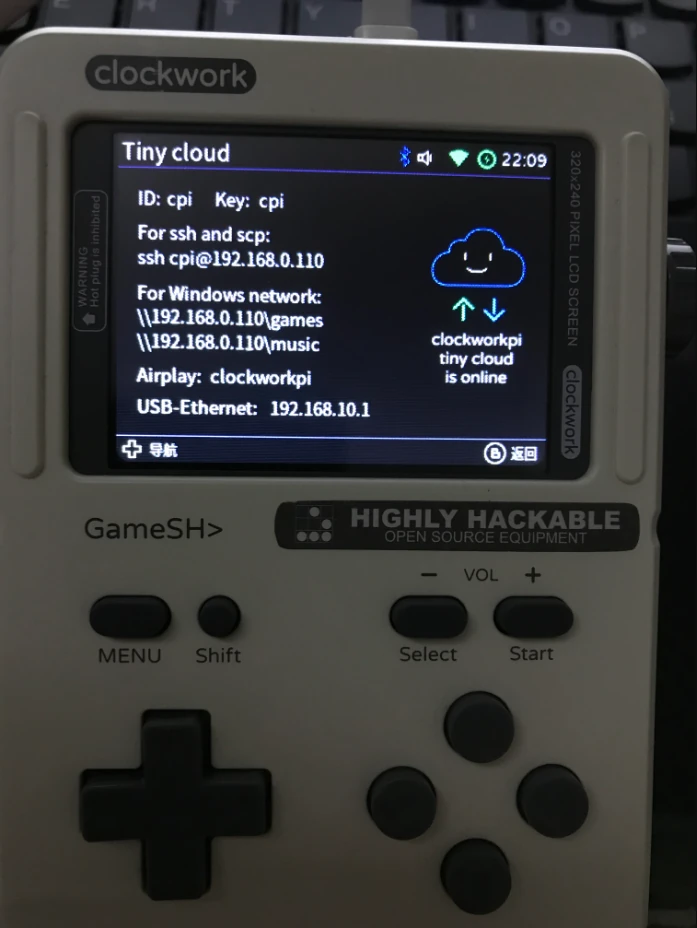
As you can see, my GameShell’s LAN IP is 192.168.0.110; of course yours may be different.
(You’ll notice I switched images again hhh — this is the official 0.5, with the theme changed…)
Windows#
On Windows 10, SMB 1.0 should be enabled by default. If it isn’t, you can turn it on under Programs and Features.
Then, in File Explorer, type the address shown in Tiny Cloud: \\192.168.0.110\games:
You might run into this:
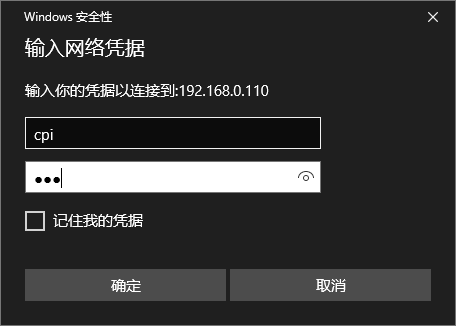
The username and password are both cpi. You can tick “Remember my credentials” and then click OK.
And with that, the games folder opens:
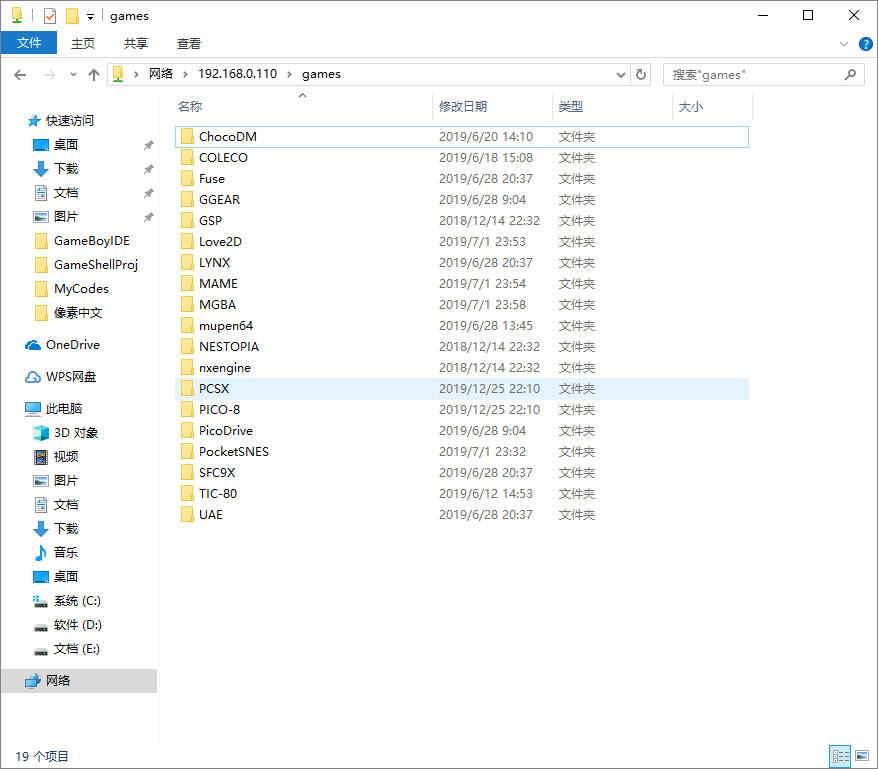
The folders inside are all game ROM folders or game folders. For example, GBA ROMs just go into the MGBA folder.
Once the ROMs are in place, go back to the menu, open Retro Games, enter the corresponding emulator, and open a game to play.
SCP#
If you want to do command-line SCP file transfers from a Bash environment, you can use Cmder, which is great. That’s pretty inefficient though, so here I recommend WinSCP or MobaXterm. WinSCP is dedicated to SCP file transfer, while MobaXterm is a free all-in-one tool with tons of features. Both can transfer files.
I won’t go into how to use them; just note that the format for remote connections is generally 用户名@域名 (username@domain) or 用户名@ip (username@ip).
So following that rule, just use cpi@${你GameShell的局域网ip} (your GameShell’s LAN IP). For me, that’s cpi@192.168.0.110.
2022/05/12 Migrated here from cnblogs.
Comments